Want to save a YouTube video without installing an app, creating an account or clicking through five pages of pop-ups? With a 1-click YouTube video download tool you simply paste the link, tap Download and the file lands on your phone or computer. This guide shows you exactly how to do it — on iPhone, Android, Windows and Mac — plus how to grab just the audio as MP3.
Quick answer: Copy the YouTube link → open the GrabSaver YouTube Video Downloader → paste the link → tap Download → choose MP4 (video) or MP3 (audio). That’s it.
What does “1-click YouTube download” actually mean?
Most online downloaders make you jump through hoops: redirect pages, fake “Download” buttons, browser extensions and countdown timers. A true one-click downloader does the work on its own servers. You paste a link, and it returns clean, direct download buttons for every available quality. One tap on the quality you want and the file starts saving.
GrabSaver works this way. There is nothing to install, no sign-up and no daily limit for normal use.
How to download a YouTube video in 1 click (step by step)
Step 1: Copy the video link
- In the YouTube app: open the video, tap Share under the player and choose Copy link.
- In a browser: click the address bar and copy the URL (it looks like
youtube.com/watch?v=…oryoutu.be/…). - For YouTube Shorts: tap the Share arrow on the Short and choose Copy link. Shorts links work exactly the same way.
Step 2: Paste it into GrabSaver
Open the YouTube downloader, tap the Paste button (or long-press the box and paste) and press Download. In a few seconds you will see the video title, thumbnail and a list of formats.
Step 3: Pick your format and save
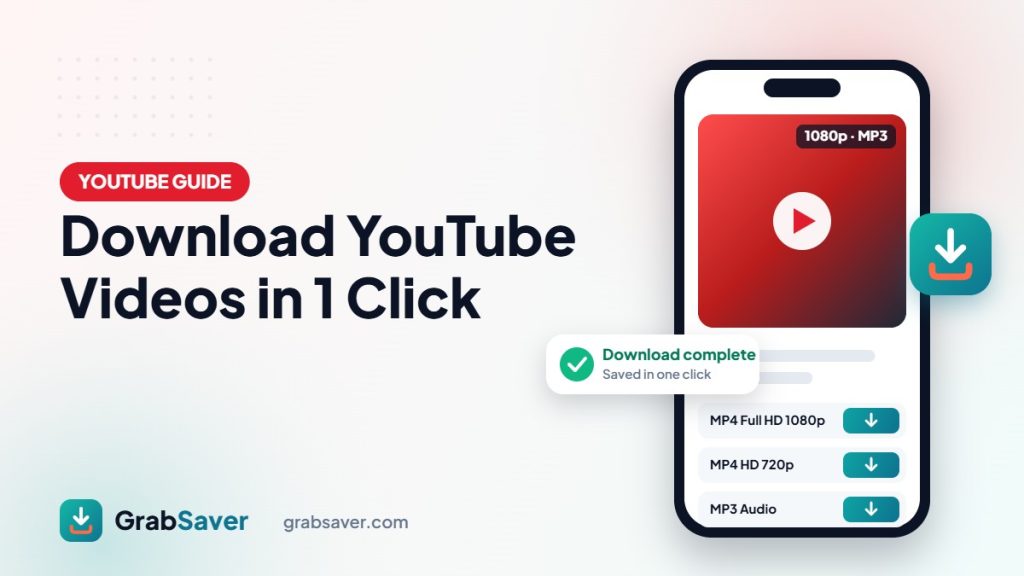
Tap the quality you want. GrabSaver prepares the file and shows a live progress bar — “Preparing”, then “Downloading… 45%”, then “Download complete”. The file is saved to your device’s Downloads folder.
Which quality should you choose?
| Option | Best for | File size (approx. per minute) |
|---|---|---|
| MP4 Full HD 1080p | Laptops, TVs, editing | Large (≈ 15–30 MB) |
| MP4 HD 720p | Phones and tablets — the best balance | Medium (≈ 8–15 MB) |
| MP4 480p / 360p | Saving storage or mobile data | Small (≈ 3–6 MB) |
| MP3 Audio | Music, podcasts, lectures | Very small (≈ 1–2 MB) |
Sizes vary from video to video, but as a rule of thumb, 720p is perfect for phones and 1080p is worth it on bigger screens.
How to download YouTube videos on iPhone
- Copy the video link from the YouTube app.
- Open Safari and go to grabsaver.com/youtube-video-downloader.
- Paste the link and tap Download, then tap your quality.
- When Safari asks, tap Download. The video is saved in the Files app → Downloads.
- To move it to Photos, open it in Files, tap the Share icon and choose Save Video.
How to download YouTube videos on Android
- Copy the link from the YouTube app.
- Open Chrome (or any browser) and visit the GrabSaver YouTube downloader.
- Paste, tap Download, and choose a quality.
- The file is saved in your Downloads folder and appears in your Gallery or Files app.
How to download YouTube videos on Windows or Mac
Copy the URL from the address bar, paste it into GrabSaver and click your preferred format. The file goes straight to your browser’s download folder — no software, no extensions.
How to convert YouTube to MP3
Need only the sound — a song, a podcast episode or a lecture? Paste the link as usual and choose MP3 Audio. GrabSaver extracts the audio track in high quality so you can listen offline in any music player.
Troubleshooting
- The video plays instead of downloading: long-press (mobile) or right-click (desktop) the link that appears and choose Download link / Save link as.
- “Couldn’t fetch this link”: the video may be private, age-restricted or removed. Only public videos can be downloaded.
- Download is slow: long videos take a little longer to prepare. Keep the page open until you see “Download complete”.
Is it legal to download YouTube videos?
Downloading for personal, offline viewing of content you have the right to use — your own uploads, Creative Commons videos or content the creator allows you to save — is the safest approach. Re-uploading or selling someone else’s video without permission is copyright infringement. Always respect creators.
More free downloaders
GrabSaver isn’t just for YouTube. You can also download TikTok videos without watermark, save Instagram photos and Reels and download Facebook videos in HD. For more step-by-step help, read our guides on saving TikToks without the watermark and downloading Facebook videos in HD.
Frequently asked questions
Is GrabSaver’s YouTube downloader free?
Yes. It is completely free, with no sign-up and no watermark added to your files.
Can I download YouTube Shorts?
Yes. Copy the Short’s link and paste it in — Shorts download exactly like normal videos.
Do I need to install an app?
No. Everything happens in your browser on any phone or computer.
What is the maximum quality?
GrabSaver offers up to Full HD 1080p when the original video is available in that quality.