Most people watch TikTok on their phone — but when you want to download a TikTok video on PC, for editing, a presentation or simply a bigger screen, the app doesn’t help. TikTok’s website has no download button for most videos, and the ones it does save come with a watermark. Here’s the quickest way to download video TikTok free on Windows, Mac, Chromebook or Linux — in HD, without watermark, and without installing any software.
Quick answer: Open the video on tiktok.com → copy the URL from the address bar → paste it into the GrabSaver TikTok Downloader → click Download → pick HD. The MP4 lands in your Downloads folder.
How to download a TikTok video on PC (step by step)
Step 1: Copy the TikTok video link
- From tiktok.com: click the video so it opens on its own page, then copy the URL from the address bar (Ctrl + L, then Ctrl + C on Windows; Cmd + L, Cmd + C on Mac).
- From the video page: click the Share arrow and choose Copy link.
- From your phone: tap Share → Copy link and send it to yourself, or paste it straight into GrabSaver on your phone.
Step 2: Paste the link into GrabSaver
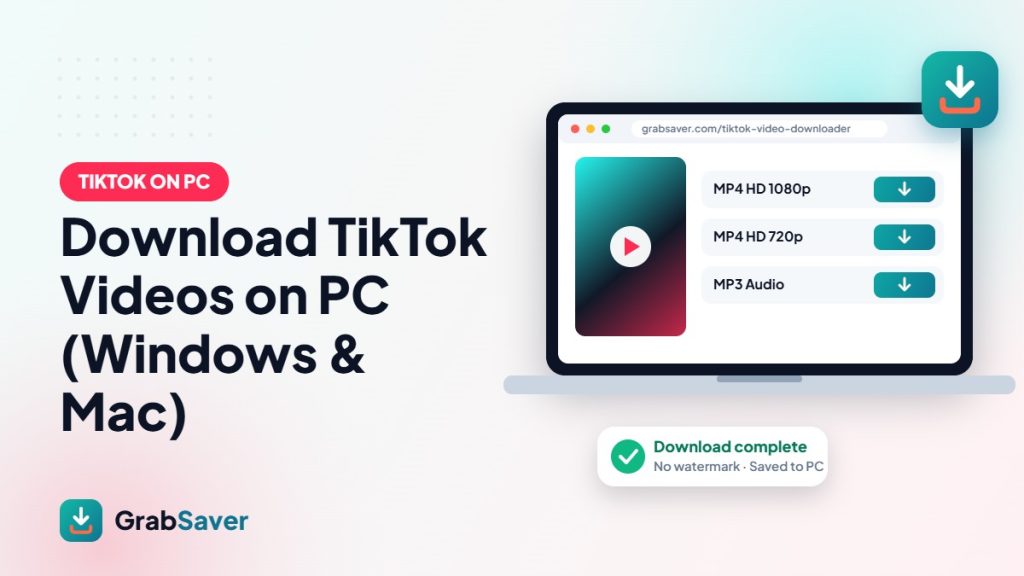
Open the TikTok video downloader in any browser — Chrome, Edge, Firefox, Safari or Opera. Click inside the box, press Ctrl + V (or Cmd + V) and click Download.
Step 3: Choose HD and save
You’ll see the video’s cover and caption with several options. Click the highest quality — usually MP4 HD 720p or 1080p. A progress bar shows the file being prepared, then “Download complete”. The video is saved without the TikTok watermark.
Where does the downloaded TikTok go on my computer?
| Browser | Default location | Shortcut to open |
|---|---|---|
| Chrome / Edge | Downloads folder | Ctrl + J (Windows) / Cmd + Shift + J (Mac) |
| Firefox | Downloads folder | Ctrl + Shift + Y |
| Safari (Mac) | Downloads folder | Cmd + Option + L |
Tip: if the video starts playing in a new tab instead of downloading, right-click it and choose Save video as….
Download TikTok videos on Mac
The steps are identical on macOS. Copy the URL in Safari or Chrome, paste it into GrabSaver and click your quality. The MP4 plays in QuickTime and imports straight into iMovie or Final Cut Pro.
Download TikTok videos on Chromebook
Because GrabSaver works in the browser, Chromebooks are fully supported. Files save to the Downloads folder in the Files app.
Save just the sound as MP3
Want the song or voice-over for a video you’re editing? After pasting the link, choose MP3 Audio instead of MP4.
Why use an online TikTok downloader on PC instead of software?
- Nothing to install: no .exe files, no browser extensions, no risk of bundled adware.
- Always up to date: when TikTok changes something, the website is updated for everyone instantly.
- Works on any computer: school, office or shared PCs where you can’t install programs.
Troubleshooting
- “Couldn’t fetch this link”: make sure the video is public and the link is complete.
- Slow download: keep the tab open until you see “Download complete” — long videos take a few extra seconds.
- Photo slideshows: some TikTok posts are image carousels rather than videos.
Respect creators
Download TikToks for personal, offline use or to back up your own content. Don’t re-upload other creators’ videos without permission, and always give credit.
Related guides
On your phone? Read how to download TikTok videos without watermark in HD (iPhone and Android steps). You can also download YouTube videos in one click, save Facebook videos in HD and download Instagram photos and Reels.
Frequently asked questions
Can I download TikTok videos on PC for free?
Yes. GrabSaver is free with no account, no software and no daily limit for normal use.
Will the video have a watermark?
No. GrabSaver saves the original upload, so there’s no TikTok logo or username watermark.
Does it work on Windows 10 and 11?
Yes — and on any version of Windows, macOS, ChromeOS or Linux with a modern browser.
Can I download several TikToks at once?
Paste one link at a time. Each download only takes a few seconds.